Compare PDFs
See where two PDF versions look different. Render both at the same DPI, inspect paired pages or an adjustable overlay, and save a visual report containing original, current and highlighted difference images.
Compare two versions of your PDF
Choose the original PDF and its updated version, then choose Compare PDFs. Review the changed pages below in paired, overlay or highlighted views, and download a visual report.
Two PDFs, up to 10 MiB and 20 pages each, without passwords, fill-in fields or digital signatures. Your documents stay in this browser.
Start with 96 DPI and 24. Lower the difference threshold to spot fainter changes; raise it to ignore more tiny variations. Pages are paired by their page number, so adding a page in the middle shifts later pairs.
Choose two PDFs to compare locally.
How to use Compare PDFs
Choose the two versions
Choose your Original PDF and Current PDF, or use Try an example. Start with 96 DPI and a difference threshold of 24. The quick 72 DPI option needs less work; 144 DPI checks finer detail.
Lower the threshold to pick up faint changes. Higher values ignore more small colour differences. Changing either setting clears an old result, so compare again.
Look through the changes
Choose Compare PDFs. The summary lists changed, added, removed and unchanged page pairs. Select a pair or use Previous pair and Next pair.
Paired pages shows both versions beside each other. Overlay puts the updated page over the original; adjust its opacity slider to see how they line up. Difference highlights marks changed pixels in magenta. The text equivalent lists the positions of changed areas without relying on colour alone.
Save a report
Download visual report saves a PDF summary with images of the changed, added and removed page pairs. Check the original documents too. Clear starts again, and Cancel stops the workers and clears the result.
Example: check an edited invoice
You have an invoice with a total of 125 and an updated copy with a total of 175. Choose them as Original PDF and Current PDF, then compare at 96 DPI and 24.
Open the changed page and choose Difference highlights to find the changed digits. Use Overlay to inspect their position, then download the report to share what you found. An unchanged page should show no changed pixels.
Try an example loads two practice PDFs with different page text so you can explore all three preview modes.
About visual PDF comparisons
A visual comparison looks for differences in how pages appear. It can help you review edits to invoices, reports or designs, but it does not understand the meaning of the words or decide whether two documents are legally equivalent.
Pages are matched by number, not by their contents. Adding a page in the middle shifts later pairs. Different-sized pages are lined up at the top-left without stretching; empty space is shown in white.
Font rendering, scans and small position changes can create highlights. A high threshold can hide faint edits, so inspect important differences yourself. Groups of touching pixels are visual areas, not a count of meaningful edits.
Your documents and results stay in this browser. Source files are unchanged, and only the report you choose to download is saved.
Related tools
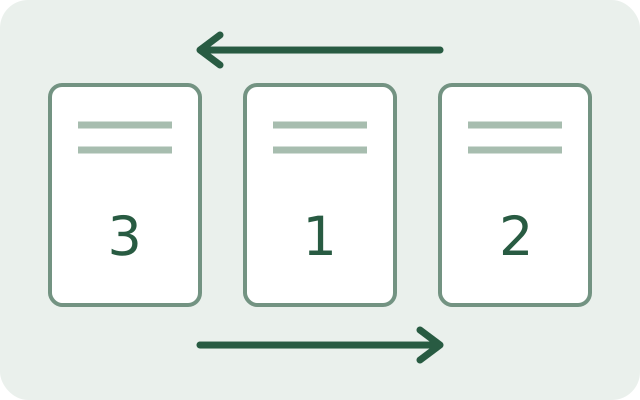
PDF page organiser
Reorder, rotate, and remove pages using thumbnails.

Crop PDF
Draw a crop rectangle or enter point margins for current, selected or all pages.
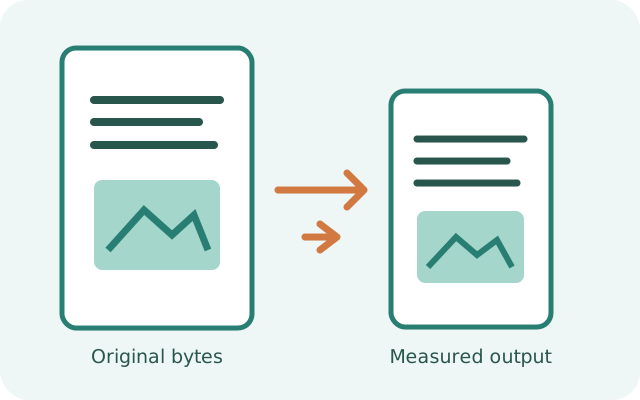
Compress PDF
Measure lossless PDF cleanup or selectively downsample supported RGB JPEG images locally.
Split PDF
Extract pages, split by ranges, or save every page as its own PDF.
Stars and feedback
Loading…
What should we improve next?
Help shape the next update to Compare PDFs. Tell us what would make it better for you.
Prefer email? feedback@tooltulip.com
Tool reference #161